Keep text in context
Translate headlines, labels and captions together with the image around them. The translation aims to preserve the original layout and visual hierarchy. Longer wording may change line breaks, spacing or font size.
132 languages · JPG, PNG, WebP
Translate the text in photos, screenshots, menus and product images, then download a finished image that keeps the original design.
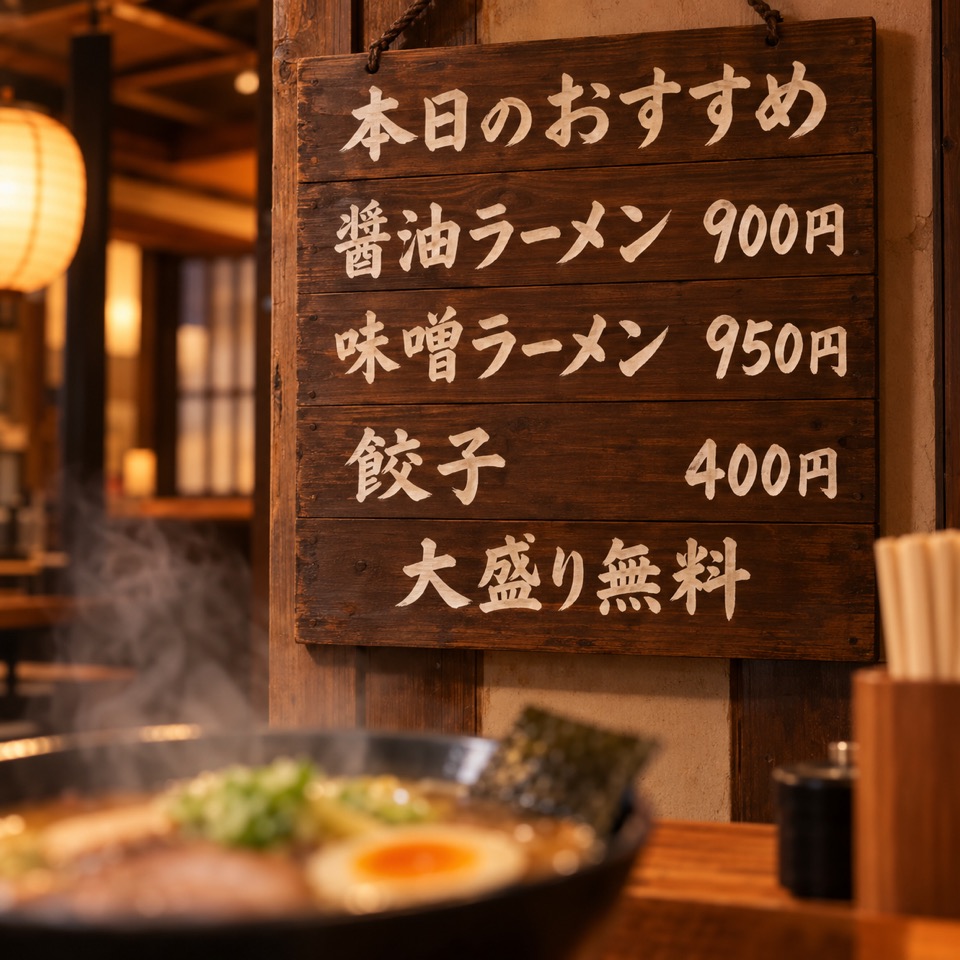
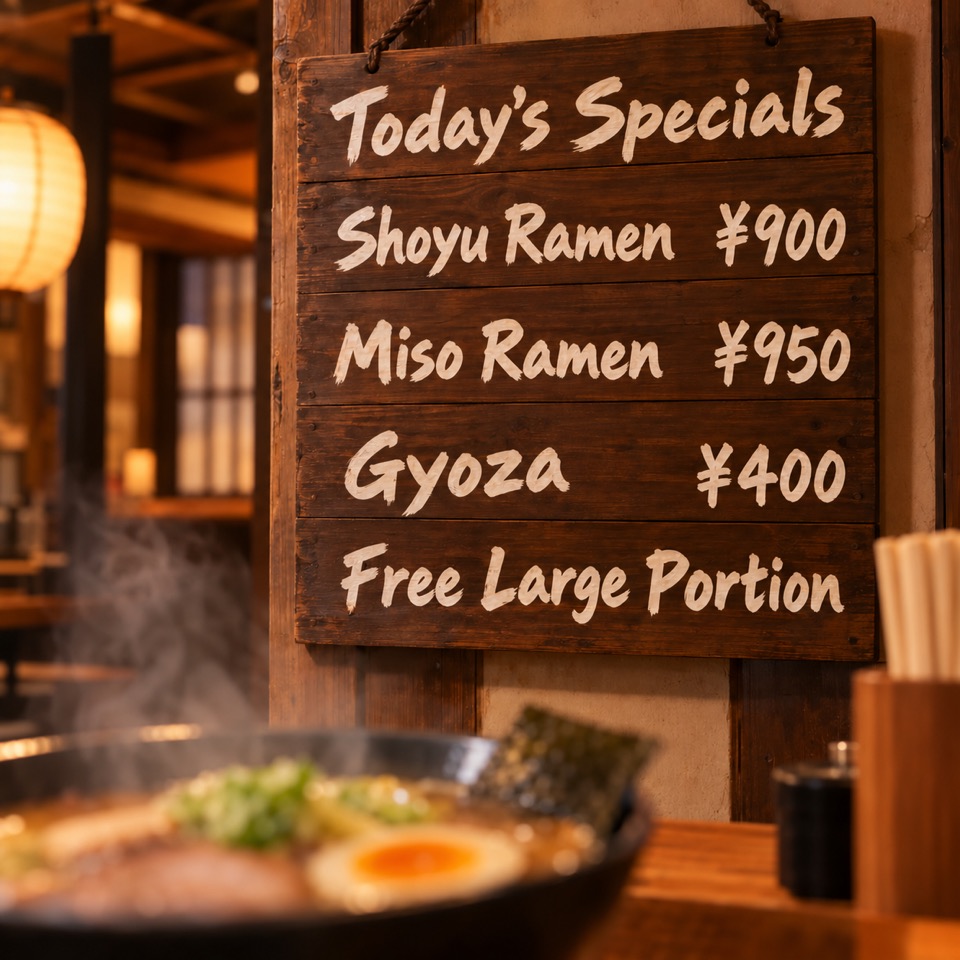
Illustrative examples created for this page.
TRANSLATION WORKSPACE
Translate image text into another language while keeping the original look.
Start with 30 free credits — translate up to 3 images, no payment required.
image translation, from upload to download
Use this online image translator to translate the text inside a photo, screenshot or graphic and receive a complete translated image. AI image translation aims to keep the composition, colors and placement of the original, so your message can reach readers in another language.
The workspace above handles the whole process: upload your images, choose the languages, add any instructions, then compare and download your results. Review the wording and design before sharing or publishing.
three steps, one workspace
Start with a clear image. Larger, readable text gives the translator more context than a blurry or tightly cropped picture.
Drop a JPG, JPEG, PNG or WebP file into the uploader, browse your files, or choose a folder. You can add up to 10 images per batch, with a limit of 20 MB for each file.
Use Auto Detect or select the source language, then choose up to 5 target languages. To translate images with AI while keeping a product name, model number or specific tone, add a custom instruction.
Start the translation, then open a completed result to compare it with the original. Check names, numbers and line breaks before downloading. Your signed-in translation history keeps completed tasks available for review.
ai image translation
An AI image translator does more than return a paragraph of translated text. The result is an image with the translated wording placed back into the design.
Translate your own imageTranslate headlines, labels and captions together with the image around them. The translation aims to preserve the original layout and visual hierarchy. Longer wording may change line breaks, spacing or font size.
Batch image translation creates a separate task for every image and target language. You can translate images to multiple languages in one submission and review each result independently.
Use custom instructions for brand names, units and terms that should stay unchanged. For example: “Keep L-120 and 5W unchanged. Translate the product description into concise English.”
see what changes
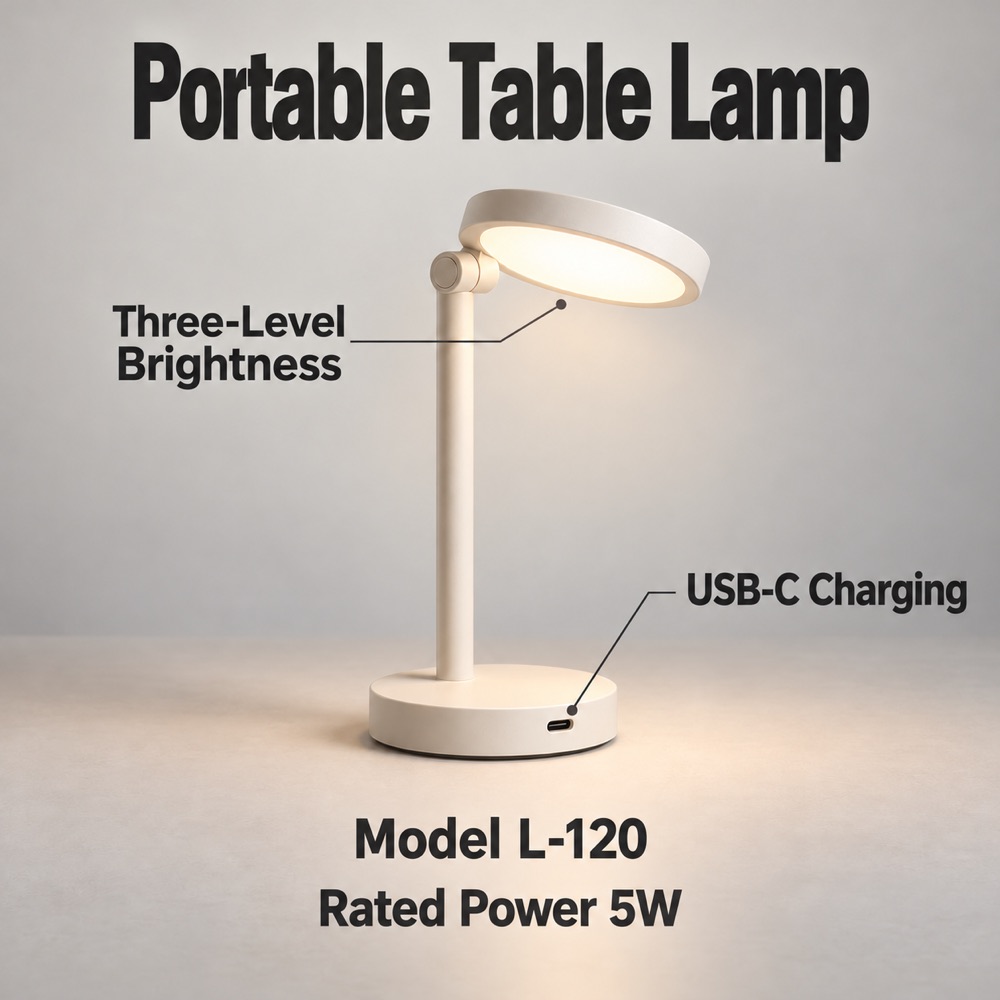
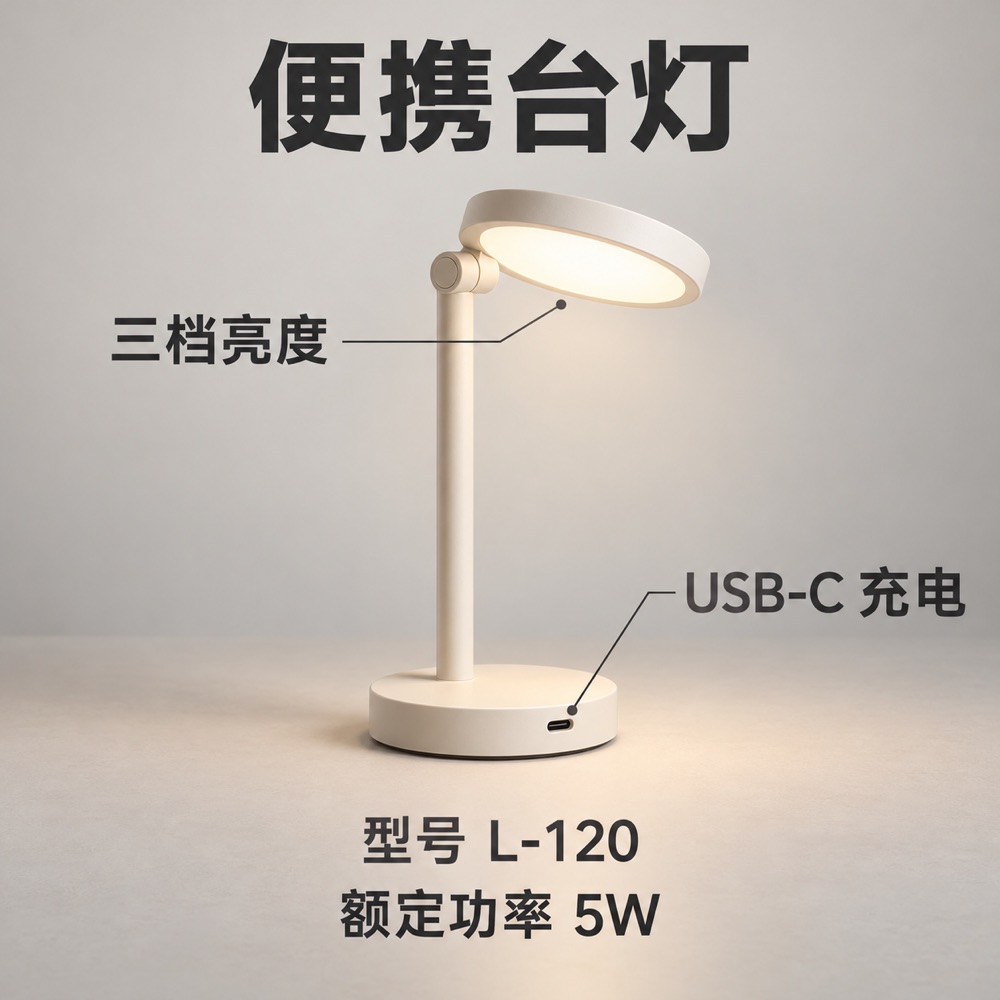
This example translates a Chinese product image into English. The product copy becomes “Portable Table Lamp,” “Three-Level Brightness” and “USB-C Charging,” while L-120 and 5W remain visible.
AI-generated source illustration with an actual translation output from the app’s translation engine, recorded on October 15, 2026. English line breaks and type sizes changed. Compare the wording and layout before publishing your own results.
the text is already in your image
Translate from image files you already have. Choose the source and target languages in the same workspace for each of these tasks.


Translate product descriptions, packaging text, care instructions and size graphics for another audience. Review model numbers, measurements and claims against your own product information before publishing.
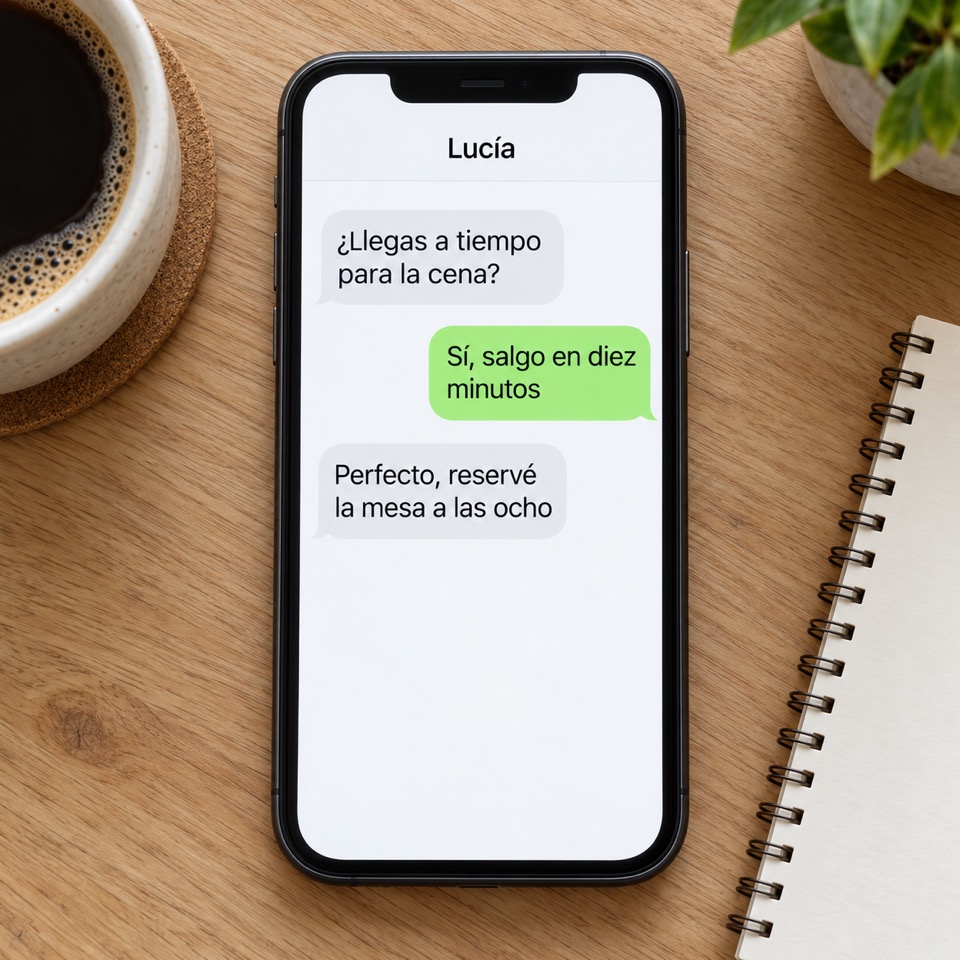
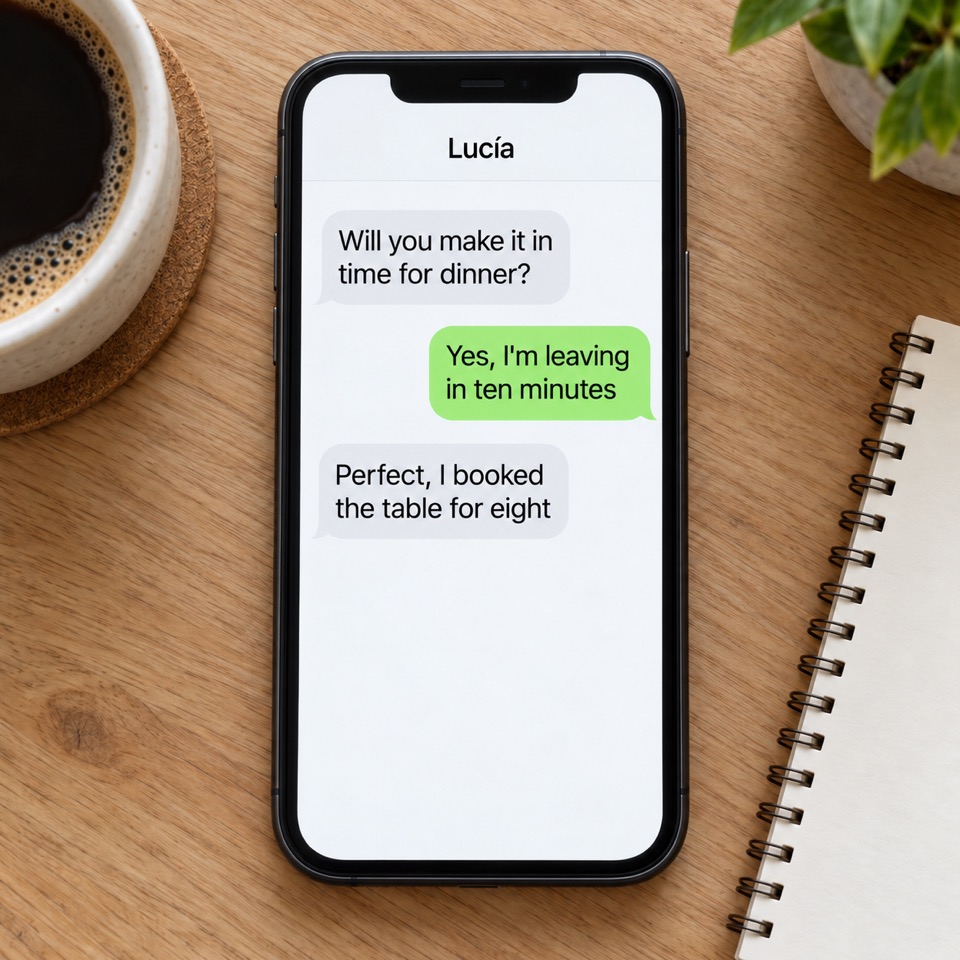
Translate visible words in an app screen, website capture, game screenshot or saved conversation. Crop irrelevant areas first and keep enough surrounding text to make the message understandable.
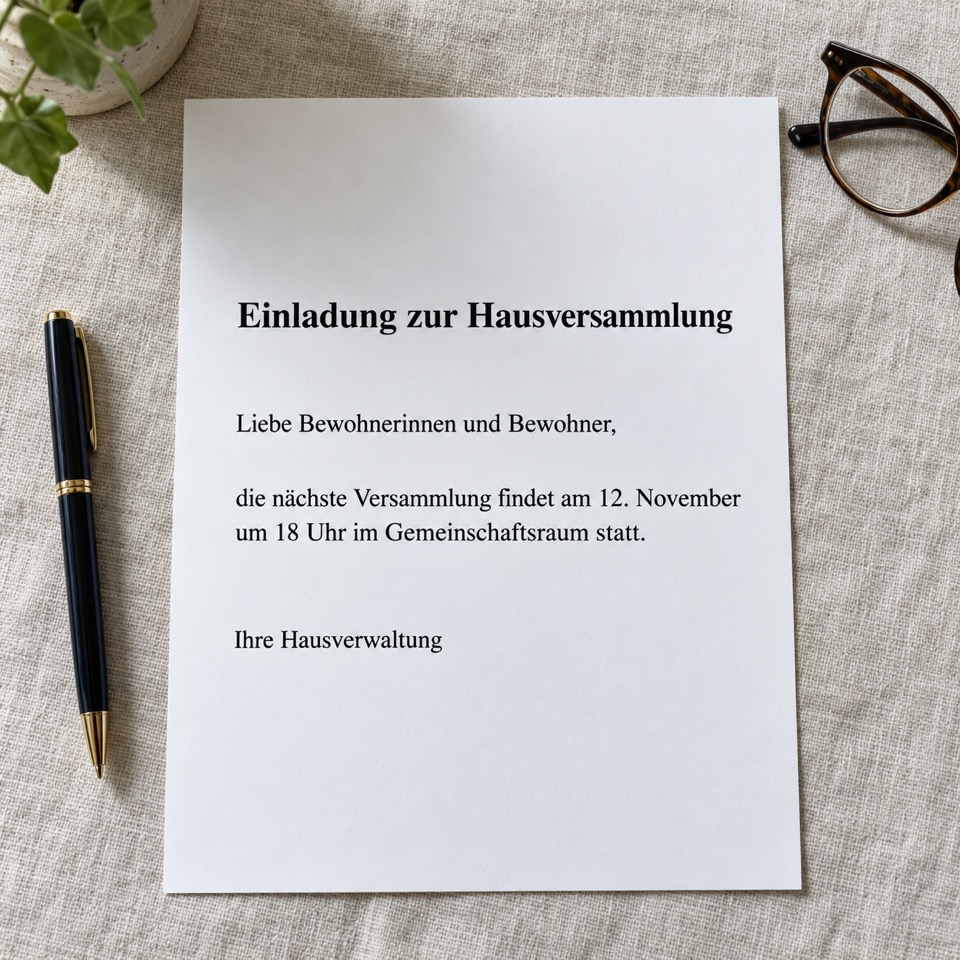

Use a photo translator for printed letters, signs and document pages saved as images. Photograph the page straight on, reduce glare and make small words readable. The output is a translated image.
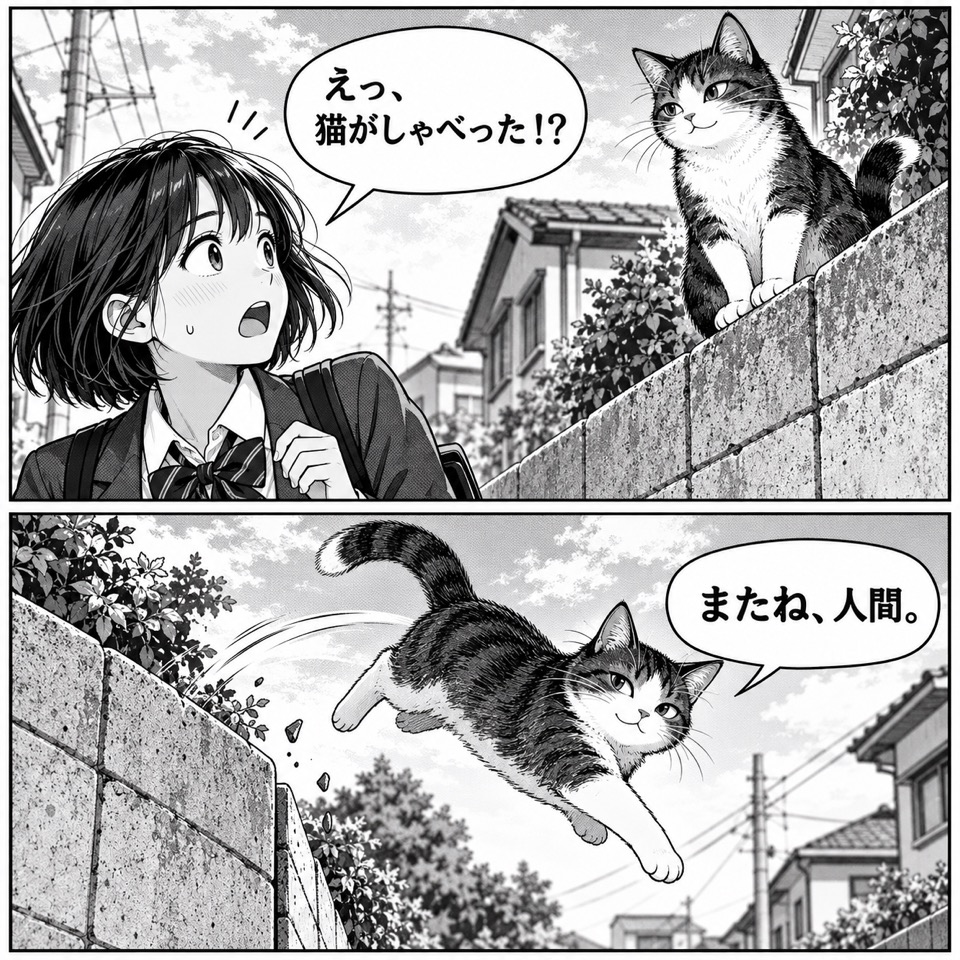
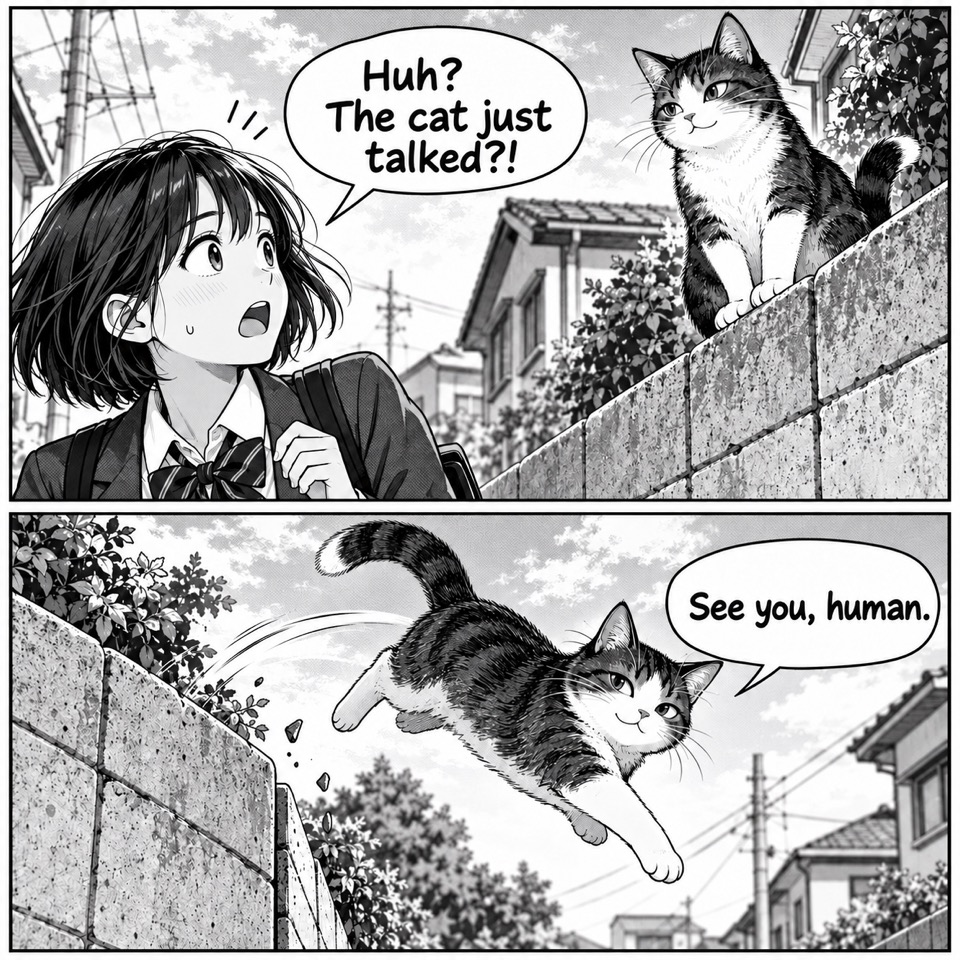
Translate dialogue, speech bubbles and captions on image files. Review reading order, names and text near artwork. Stylized lettering and crowded bubbles may need closer checking after translation.
Translate a menu photo or a sign into a language you can read. Check names, prices and important instructions carefully. An unclear photograph may lose details that the translator cannot recover.


Translate banner text, infographic labels and promotional artwork while keeping the message connected to its design. Check dates, offers and text length before using the image in a campaign.
one image, more readers
Translate image text to English, Spanish, French, German, Japanese and more. The source language and output language are separate choices; the English interface does not limit which languages you can translate.
Use the Chinese image translator online for product photos, labels or screenshots. Choose Simplified Chinese or Traditional Chinese as the source, or use Auto Detect, then select English or another target language. Check names and terms that can have more than one meaning.
A Japanese menu, Korean screenshot or Spanish poster uses the same upload-and-review workflow. You can choose several target languages without re-uploading the original. Each translated image is available as its own result.
quality checklist
Use the clearest original you have. Avoid screenshots of thumbnails, strong glare and text cut off at the edge. Save a document page as JPG, PNG or WebP before uploading; direct PDF translation is not available.
Tell the translator which brand names, model codes, units or phrases should stay unchanged. Include the exact desired wording when a product term has several possible translations.
Compare the original and translation, including names, numbers, product details and text placement. A regenerated image can change more than a single word, so review the whole output again.
before you start
Practical answers about image translation online, free credits, formats and the results you can download.
It means translating written language that appears inside an image. This image translator reads the visible wording and generates an image with translated text. You can use the same process for a photograph, screenshot, scanned page or graphic.
Upload a supported image, use Auto Detect or choose its source language, select a target language and start the translation. You do not need to type out the original text. The output is a complete translated image that you can compare and download.
Yes. Select up to 5 target languages for the same uploaded image. For example, choose English and Spanish to create two separate results. Every image-language combination is processed and charged as an independent task.
Eligible verified accounts receive 30 free credits to try image translation. Each image and target language currently costs 10 credits. Further translations use your available balance, a credit pack or a subscription. This is a limited trial rather than unlimited free image translation.
The translation aims to retain the composition, colors, positions and visual style while replacing meaningful visible text. Fonts, line breaks, spacing and image details may change. Compare the complete output with the original before using it.
OCR extracts written characters; a text-to-image tool creates a new picture from a prompt. This workspace translates the text within an existing image and returns a translated image. It does not provide an editable OCR transcript or a separate text-to-image generation mode.
Yes, when you upload the scan as a supported image file and its wording is readable. An image scanner translator still needs a clear source: crop unnecessary borders, avoid blur and include the full sentence. The result is an image, not an editable document.
Yes. Upload the image, choose Simplified Chinese, Traditional Chinese or Auto Detect as the source, and select English as the target. A Chinese image translator can help with printed text in screenshots, product graphics and photographed pages. Review names, numbers and context-sensitive phrases.
You can upload JPG, JPEG, PNG and WebP files. The current limits are 10 images per batch and 20 MB per image, with a longest edge of 4096 pixels. Save PDF or other document pages as supported image files before uploading.
Multiply the number of included images by the number of selected target languages, then by 10 credits. For example, 3 images in 2 languages create 6 tasks and cost 60 credits. The workspace shows the total before you start. Failed-task credits are returned automatically.
A translated image is a newly generated file. Its pixel dimensions, image encoding and visual details can differ from the original, so its download size may also change. Check the downloaded image's dimensions and quality for your intended use.
This online image translator runs directly in your browser. You do not need to install an extension or a separate chat application. The workspace is designed to return a translated image; no browser extension, live camera translation or automatic store synchronization is offered here.
Sign in and open Translation history on this page. Completed tasks can be previewed alongside the original, downloaded or regenerated. A failed temporary task can be retried. Regeneration creates a new task and uses credits, so review the result carefully.
Your image, your languages, one workspace. Upload a clear original and start with the words you want to translate.